Problem: How do you keep files and folders up to date on both your Media Card and on your PC. It seems I was always editing my documents on the PC and saving and then doing another "save as" to save them to my media card. I wanted to have this done automatically.
I found a simple method and thought I'd share. This post is a "How To" on syncing specified folders between your PC and Media Card automatically when you plug your BlackBerry (with media card in mass storage mode) into the Computer. And now, with Documents To Go on the BlackBerry, it's nice to have all my documents up to date whenever I want to edit them on the BlackBerry. The following instructions are based on WindowsXP but Vista should be similar.
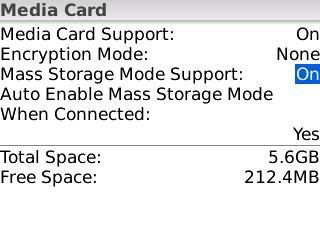
First your BlackBerry must be Media Card capable and have a Media Card inserted AND the Device must be set to Automatic Mass Storage Mode. To enable Mass Storage Mode on the BlackBerry device go to Options >Media Card and setup as shown below:
Using the Microsoft PowerToys Applications called SyncToy and TweakUI I was able to get this to work. I will try and make it understandable for anyone reading this. However, some computer knowledge and experience is required to do this.
First, download and install
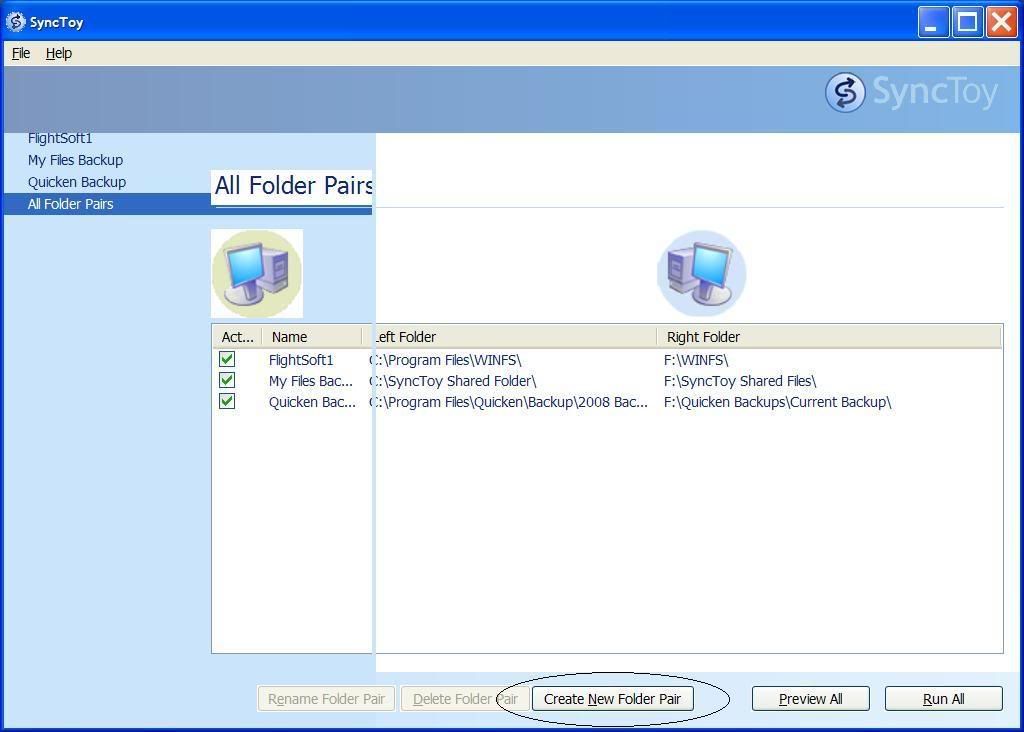
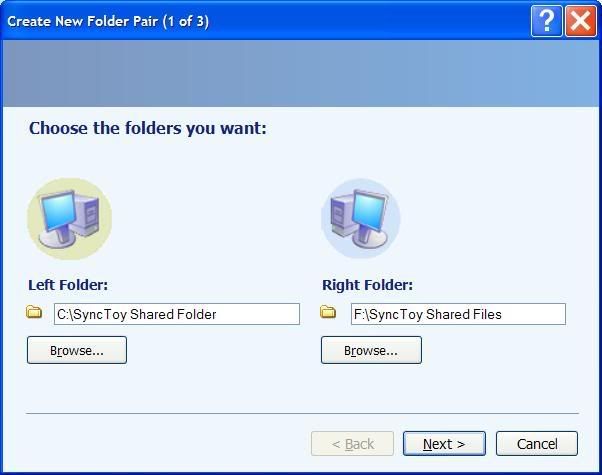
SyncToy 2.1 to your computer. (Note: Some of the screenshots below refer to "SyncToy Beta 2.0." SyncToy has been updated since the screenshots so just substitute the new installation folder names.) Open it and use it to create a folder pair(s). You'll need to choose a folder on the PC and a folder on the BB that you want sync'd. I created several folder pairs, one folder pair called "Sync Toy Shared Files" for some miscellaneous files and another for my Quicken backups.
Also, navigate to c:\Program Files\SyncToy 2.0 Beta and copy the synctoyico.ico into c:\WINDOWS\SYSTEM32. We will use this icon later.
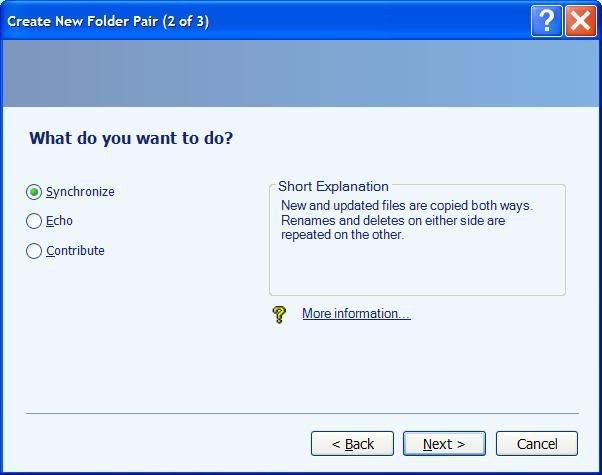
You have the option to Syncronize, Echo or Contribute. Explanations are included in SyncToy for each of the three options. Basically, Syncronize will sync the newest version of the folder/files and put the newest version on both the PC and the device. "Echo" will copy the PC to the Media Card and "Contribute" will copy the Media Card to the PC. If you have files that only get updated on the PC and you want the most current backup on the Media Card then "Echo" would be best. I also use "Echo" for my Quicken Backup folder. For documents that I may edit on my BlackBerry or my PC I set to "Syncronize."
Once you have your folder pair(s) created, you should be able to sync the folders to your media card manually. Test this by trying a sync now before continuing. Click "Run" or "Run All" on the main page of SyncToy.
However, we want to eventually do this automatically, so lets continue.
You'll need to put a copy of the SyncToy program folder on your BB. We will configure the AutoPlay feature in Windows to autoplay the program from the media card instead of the PC so that if a different BB or media card is plugged into the computer it won't attempt to sync with that card.
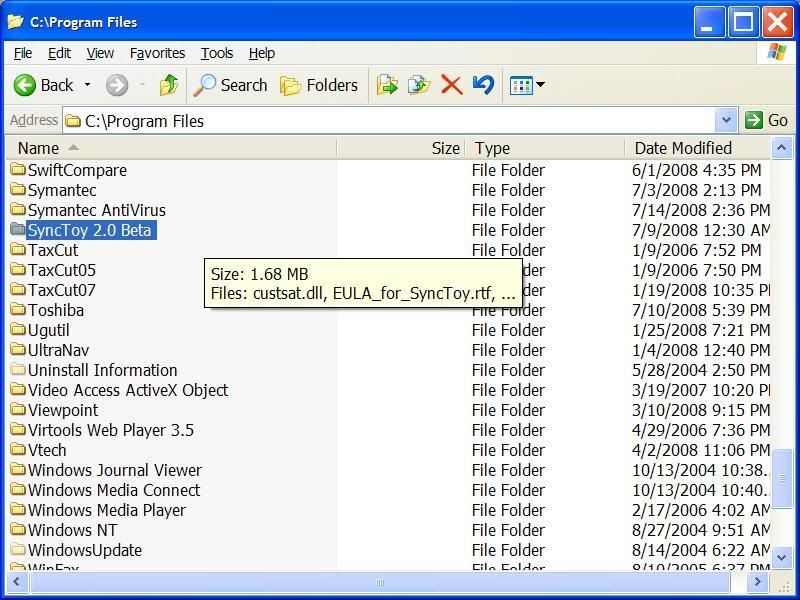
Using My Computer navigate to to C:\Program Files and copy the entire folder "SyncToy 2.0 Beta" to the root directory (F:\) on your BlackBerry's Media Card.
Simply right-click on the folder shown below and select "Copy."
Then paste it to the root directory (F:\) of your BB's Media Card as shown below. Root Directory just means the first (main) directory on the card.
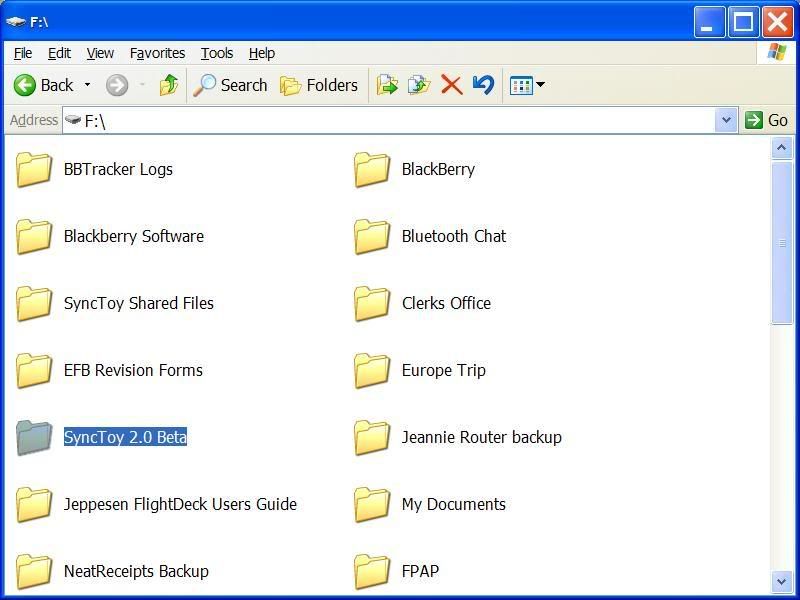
Once you have the SyncToy Application Folder copied to your Media Card you're ready to setup AutoPlay to run SyncToy.
You'll need to download and install
TweakUI. This is another Microsoft application that lets advanced users make changes to Windows setup.
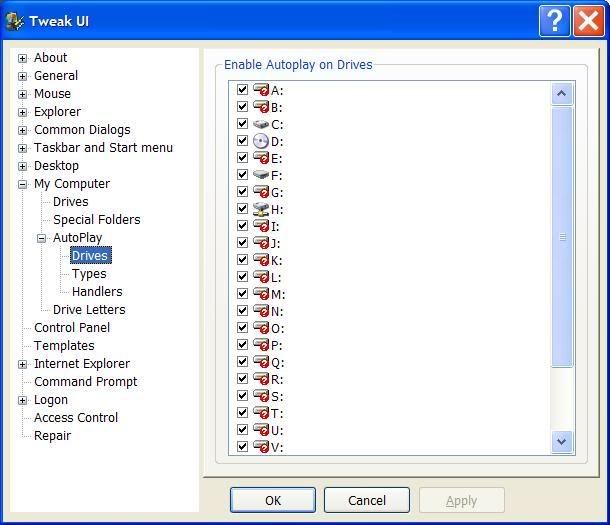
Run TweakUI and navigate to My Computer/AutoPlay/Drives.
Make sure that autoplay is checked for the drive to which your Media Card maps (usually E:/ or F:/ or G:/ depending on how many drives your computer has.)
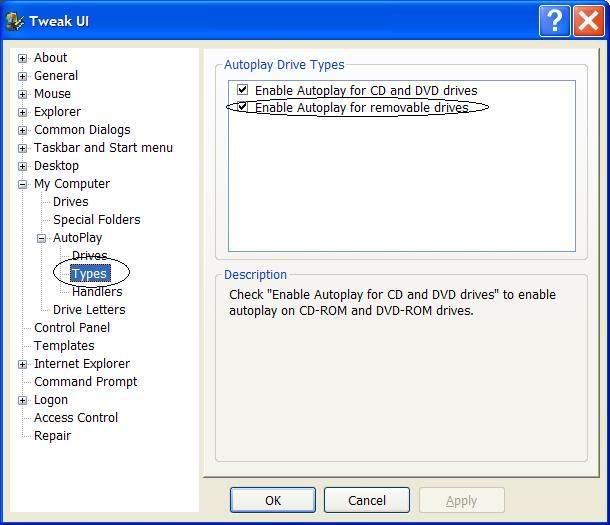
Next, navigate to My Computer/AutoPlay/Types and make sure that "Enable Autoplay for removeable drives" is checked.
Next, navigate to My Computer/AutoPlay/Handlers
Click the "Create" button.
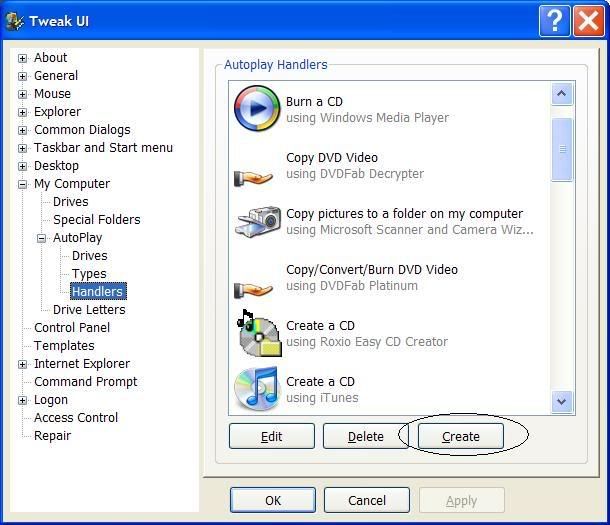
You will be creating a new handler for SyncToyCmd.exe
Type "SyncToy" in the description field
Don't touch the "using" field.
Edit the Args field to what I have below. Use the drive letter that corresponds to the drive that your Media Card maps to. Mine happens to be F:\
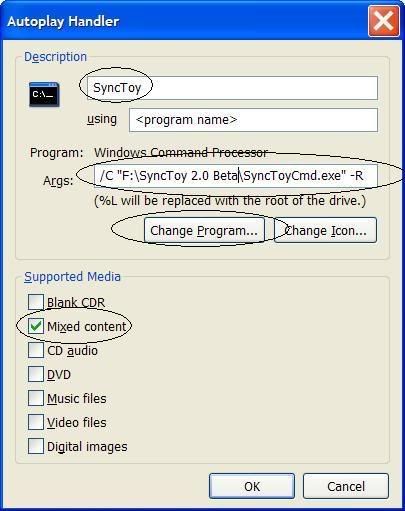
Use the /C followed by the location of the SyncToyCmd.exe file located in the SyncToy 2.0 Beta folder on the Media card. Make sure that the location has quotation marks around it. Then after the quotation marks add a space and "-R" without quotations just as in the screenshot. This will run the SyncToyCmd.exe file and then the -R will start the sync automatically.
Then click on the "Change Program" button and drill down to C:\WINDOWS\System32 and select "cmd.exe" and hit "open."
Note that after you do this, the "Program" should indicate "Windows Command Processor." (As Shown)
Then click on "Change Icon." Navigate to C:\WINDOWS\SYSTEM32\synctoyico.ico and select "Open." That should change the icon from the command prompt icon to the SyncToy icon. (just a nice touch!)
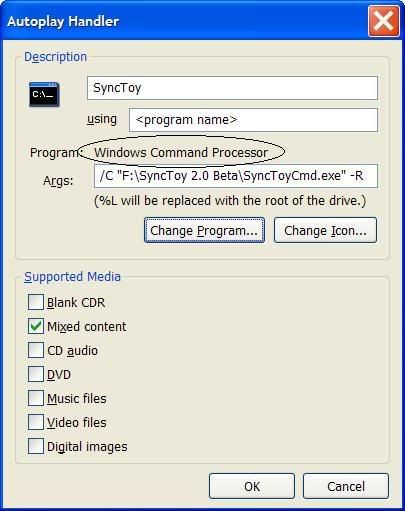
Under "Supported Media" check "Mixed Content."
Click OK on the AutoPlay Handler dialog and click OK to close TweakUI.
Next go to My Computer and right-click on the removable drive that is your BB's media card and select "Properties" and select the "AutoPlay" tab.
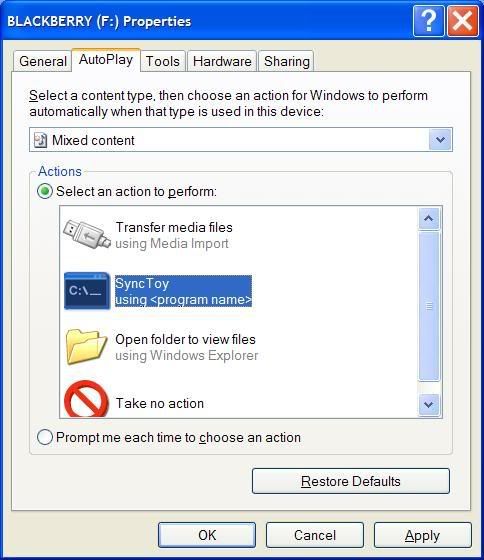
In the dropdown box select "Mixed Content." Then select the radio button for "Select an action to perform." Choose the SyncToy application. Then click OK.
You are Done!!
Whenever you plug in your BB the AutoPlay should run the SyncToy program (DOS version) and sync whatever folders you have setup in SyncToy 2.0 Beta.
Good luck and happy syncing!!
Edit 1/17/2009: Don't want the cmd window to show up when you plug the device in but still want the files to sync? Here's a small edit to the instructions above to set that up:
http://www.blackberryforums.com/medi...ml#post1251132





 How To: AutoSync Folders & Files Between PC and Media Card